
→ Find out what version you are using
If we have a chat about working together, whether that’s for training or if you want me to build you a spreadsheet, I will start off with a few questions to understand about the spreadsheet you’re using.
I’ll check whether we’re talking about Excel or Google Sheets (or something else!).
I’ll ask you about the version of Excel you use and whether you have a PC or a Mac.
If I’m building something, I’ll ask you some additional questions, such as how many people need to access the spreadsheet at once, where it gets stored and if it’s for internal use only or sent out to others.

How can you find out what version you are using?
Most of the questions you can probably answer quite easily but the tricky one might be which version of Excel you’re using.
The good news is that it’s not too difficult to find out.
First, open Excel then head to the top left hand corner of your screen and click “File”
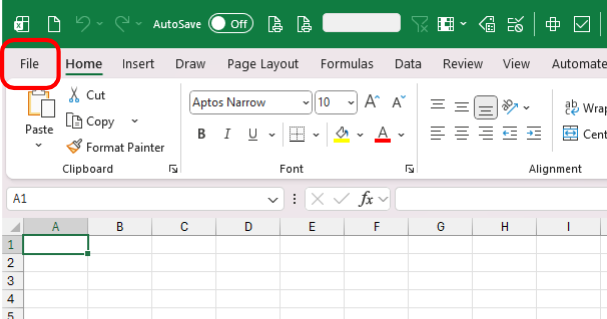
After you have clicked on “File” head all the way to the bottom left hand corner and click “Account”.
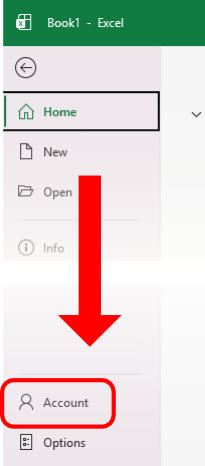
Here you can see what version of Excel you have by looking at the right hand side of the screen.
In the image below you can see that I have Microsoft 365 Apps for business. You may have a different version and that’s OK. But now you know how to find it.

So why does it matter?
So now we’ve sorted that out, why does the version matter and why do I need to know?
Because it can fundamentally change what I build for you.
If you use Excel every day it might look the same to you but Excel has changed dramatically in recent years.
In 2020 Excel got something called Dynamic Arrays, which meant that, instead of a formula only writing its result to a single cell, a formula could create a result that spans multiple cells.
Dynamic Arrays have changed how I build solutions for clients.
Using Dynamic Arrays means that I can create information that updates itself and can display changes real-time, as the video shows. There’s no need to manually re-filter your list. Change a drop-down or tick/untick a checkbox and the information you need is there, instantly.
I love creating solutions with Dynamic Arrays because it makes YOUR life easier and there’s less that I need explain to you about how to use your spreadsheet. It just works!
But here’s the thing. Because Dynamic Arrays came out in 2020 Excel 2019 does not have them. And never will. Excel versions with a year in the version name are limited to the functionality that it came with. If you’re on the subscription version then you’ll get updates like these as they are rolled out.
If I built you a spreadsheet with Dynamic Arrays for you to use in Excel 2019 then it just wouldn’t work. Excel 2019 would not understand what it was supposed to do.
(By the way, if you have Microsoft 365, Excel 2021 or later then your version will have Dynamic Arrays).
There are other cool features, like the checkboxes you can see in the video, that older versions of Excel don’t have.
Also, Excel for the Web and for the Mac do not always have the same options available as Desktop Excel for Windows. So I need to know what will work for you and what I need to leave out!
So that’s why I need to know which version you’re using – you’ll get a better spreadsheet as a result..